

DukItan Guide
How to configure and review your schedule in TimeControl
A complete tour of TimeControl's current interface: schedule, break, tolerance, entries, departure forecast, and reports.
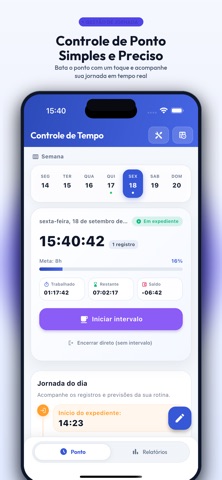
TimeControl is a personal work-schedule tracker. For its balances and forecasts to be meaningful, tapping the time button is not enough: first configure daily hours, the break, tolerance, and the overtime limit to match your routine.
This tutorial follows the current interface from initial configuration to the monthly report. Personal tracking supports review, but it does not replace an employer’s official system or HR instructions.
1. Configure the rules used for calculations
Open Settings and review Work Schedule. The current screen lets you enter:
- Work Schedule: expected daily workload;
- Minimum break time: planned rest duration;
- Tolerance: the margin used in application alerts and calculations;
- Overtime limit: a reference for warning when additional daily hours approach your chosen limit.
Use values provided by your employer or the agreement that applies to your routine. Do not copy another person’s configuration: small differences in daily workload and breaks change the departure forecast and final balance.

Configuration example
For an expected routine of 8 work hours, a 30-minute break, 10 minutes of tolerance, and a personal 2-hour overtime limit, the settings should reflect those four values. If the correct break is one hour, leaving it at 30 minutes moves the forecast forward; if daily workload is wrong, every balance will be affected.
2. Read the main screen before recording an event
In Time, TimeControl displays the week and highlights the selected day. The main card combines:
- the current state, such as Working;
- current time;
- the number of entries made that day;
- Worked time;
- Remaining time;
- projected Balance;
- the next action, such as Start break;
- an option to end directly without a break when that workflow truly applies;
- the Today’s schedule timeline with recorded and forecast events.
Read the button text before tapping. It changes with the schedule state, reducing the chance of recording a departure when you intended to begin a break.
3. Record events when they happen
A typical sequence has four events:
- work start;
- break start;
- return from break;
- work end.
Recording each event at the correct time keeps forecasts consistent. When a time needs correction, edit the event and review the day’s totals again. Avoid reconstructing several days from memory.
The timeline distinguishes completed and forecast events, helping you see what happened and what comes next. Before closing the day, check for a start without an end, an open break, or a duplicate entry.
4. Treat the departure forecast as dynamic
The forecast is not a fixed time. It responds to the recorded start, configured workload, and actual break duration. A later start or longer break moves the expected departure accordingly.
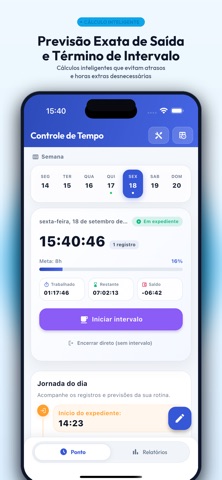
Use the forecast to plan the rest of your day, but record the actual departure when it happens. A forecast does not create an entry automatically and does not override employer-specific rules.
5. Understand the source of a balance
A positive balance means recorded time exceeded the configured reference; a negative balance means it remained below that reference. To understand why, verify:
- whether start and end entries are correct;
- whether the break was opened and closed;
- whether that day had a different schedule;
- whether an event was edited;
- whether tolerance and overtime limits were configured correctly.
Finding the event behind a difference is more useful than simply trying to “zero” the number. How a balance is compensated or handled must follow the rules that apply to your work.
6. Review the week and month in Reports
Under Reports, Monthly overview includes indicators such as:
- worked hours;
- weekly target;
- hour balance;
- overtime;
- weekly performance;
- an estimate related to additional hours when configured.


Before closing the period, open days with differences and change only entries you can confirm. Then compare the personal report with the time sheet provided by your employer.
Recommended review routine
Every day
- record each event when it happens;
- read the next-action button before tapping;
- check worked, remaining, and balance before ending;
- correct a missed event as soon as possible.
Every week
- review weekly performance;
- find incomplete or unusual days;
- confirm that configured workload remains correct;
- monitor proximity to your overtime limit.
At the end of the month
- review the overview and hour balance;
- compare them with your employer’s official document;
- investigate differences by date and event;
- export or keep the report when it helps your personal records.
Common problems and what to check
| Situation | What to verify |
|---|---|
| Incorrect departure forecast | Daily workload, start time, and break duration |
| Unexpected negative balance | Missing entry, open break, or incorrect daily workload |
| More overtime than expected | End entry, configured limit, and edited events |
| Incomplete daily total | Start, break, return, and end sequence |
| Difference from the official time sheet | Dates, rounding, employer rules, and corrected entries |
When correctly configured and reviewed frequently, TimeControl becomes more than a timer: it provides a detailed personal history of your work schedule.